
AI Photo Restoration
Bring old or faded photos back to life. Photo Restoration repairs scratches, improves faded colors, and sharpens blurry details in scanned or old images.
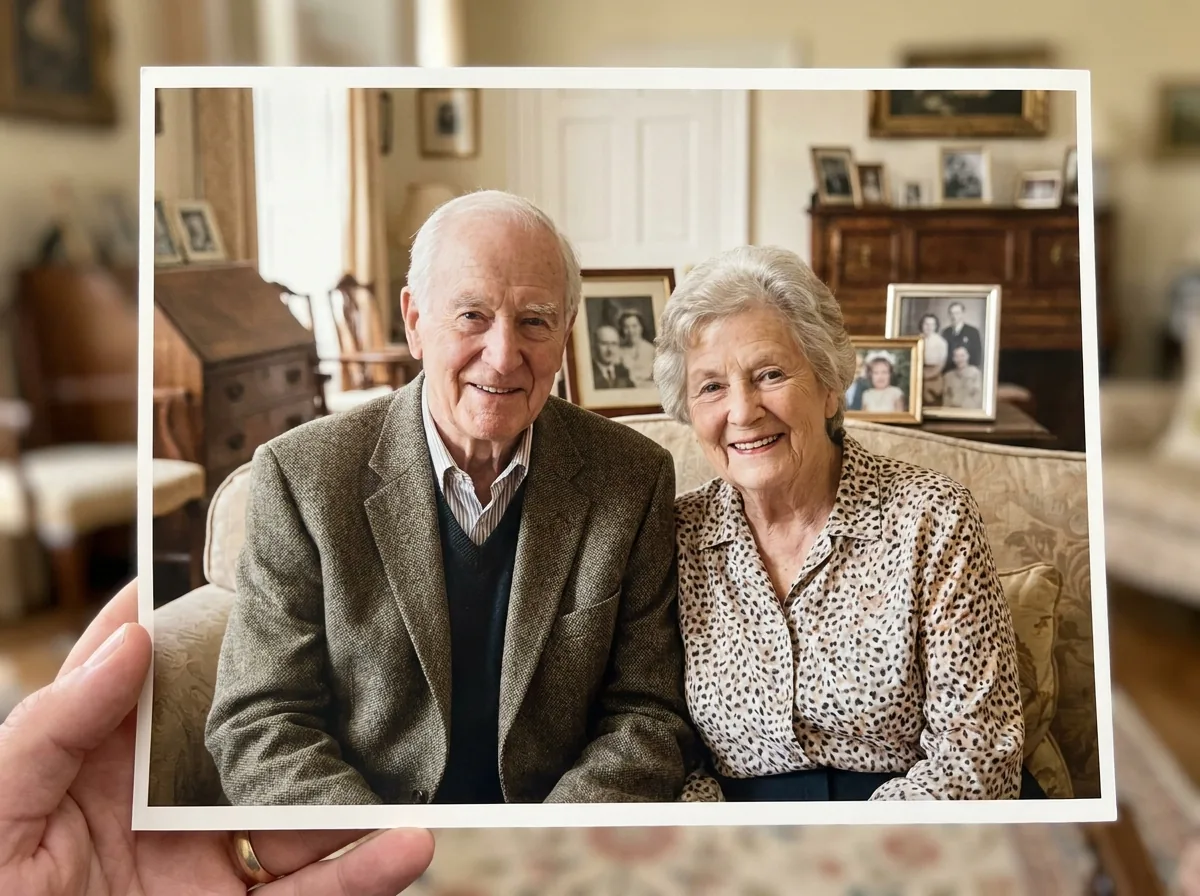
 Before
After
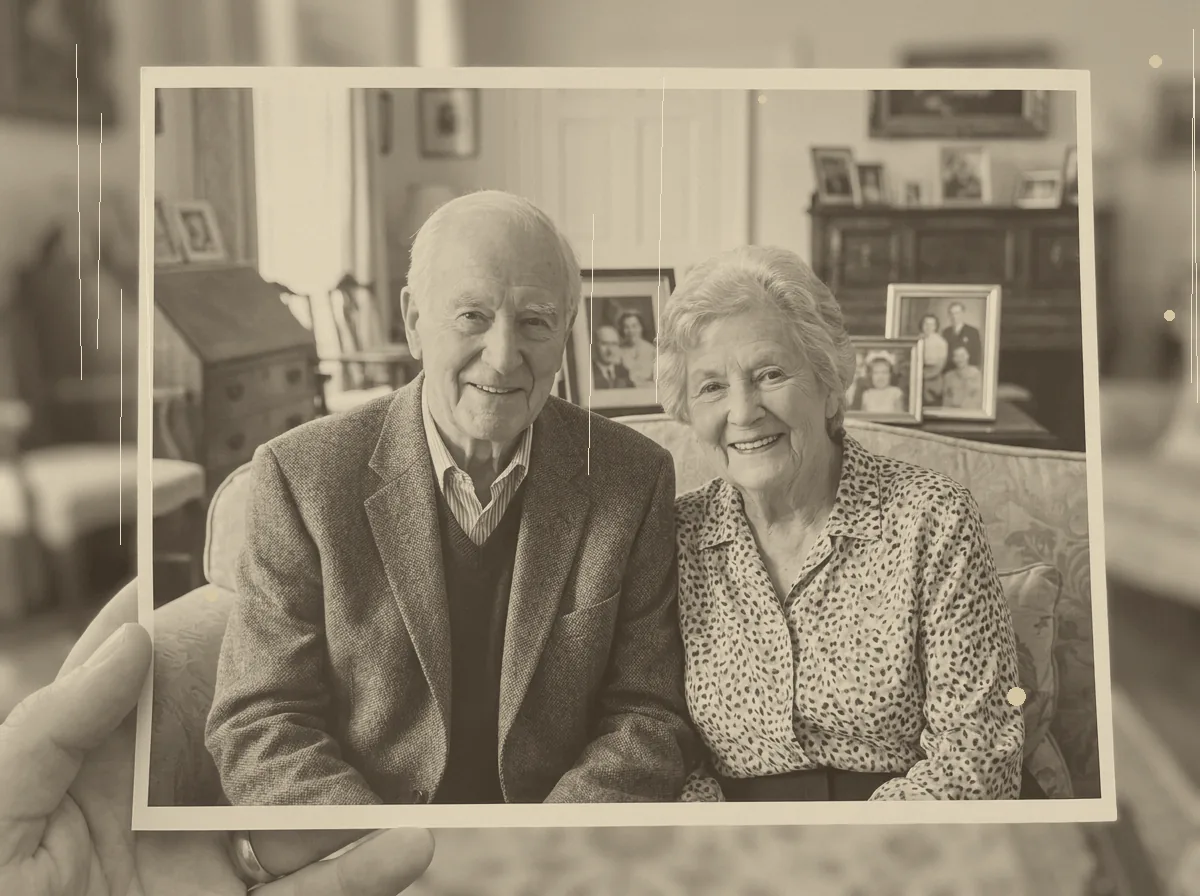
Before
After
Photo Restoration - Upload & Restore Photo
Click to upload or drag & drop
JPEG, PNG or WebP — max 10 MB
This tool is for creative and entertainment use only. Misuse to create deceptive or harmful content is strictly prohibited. Read our Content Policy.
How Photo Restoration Works
Upload an old photo
Add a scratched, torn, faded or black-and-white photo.
AI restores it
Damage is repaired, faded color revived and soft detail brought back to life.
Download the restored photo
Save your revived memory in full resolution.
Bring Damaged Photos Back to Life
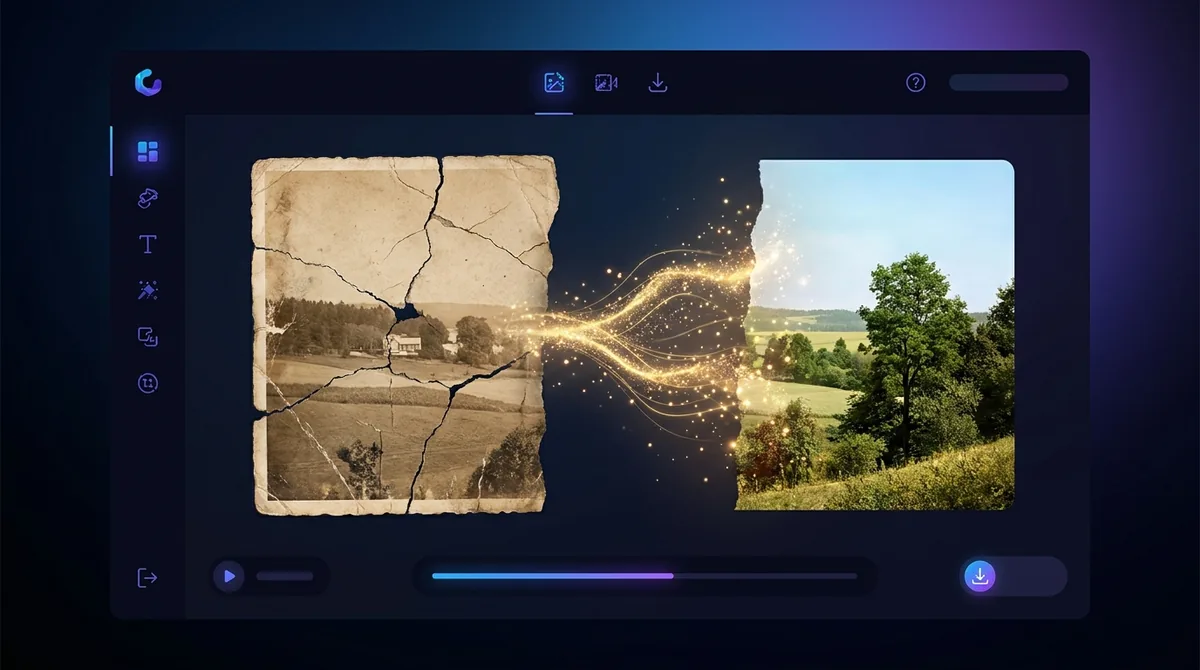
Old prints fade, crack, tear and yellow with age - And every one of those flaws tells the AI something about what needs fixing. Our photo restorer detects scratches and damage, rebuilds missing detail, revives faded contrast and can bring gentle, believable color to black-and-white images. The goal is never to invent a new photo, but to recover the one you already have so the faces and moments come through clearly again.
Revive Family Archives & Heirlooms
Restoration is perfect for digitised family albums, inherited portraits, wedding photos and historical images that have not survived the decades intact. Many people restore a grandparent’s portrait to print and frame as a gift, or clean up a whole archive before sharing it with relatives. It is a simple way to preserve memories that would otherwise keep degrading in a shoebox.
Scan Once, Restore Beautifully
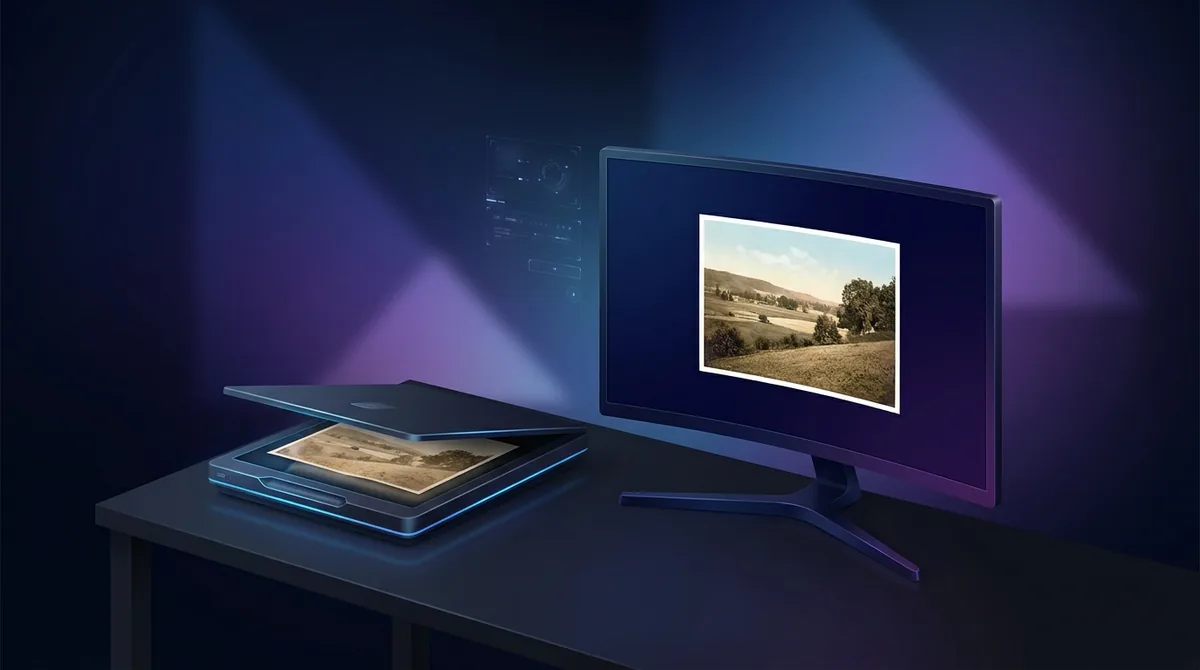
For the best results, scan or photograph the original at the highest resolution you can, with even lighting and no glare. Capture the whole print, including damaged areas, so the AI has full context to work from. If the restored image comes out a little small, follow up with the Image Upscaler so you can print it large without losing the detail you just recovered.

Your images stay yours
Free to use with no signup. Uploads are processed securely and removed automatically. Only use photos you own or have permission to edit.
Learn about safety →Best photos to use
- Aged prints with physical damage the AI can read and repair - surface scratches, hairline cracks in the emulsion, creases, dog-eared corners, or silvering along the edges.
- Sun-faded, sepia-shifted or yellowed prints where the tones have drifted but the figures and faces are still legible underneath.
- Old scans that came back soft or low-contrast, where you want the existing detail tightened up rather than reinvented.
- Damaged spots that are small to moderate and sit away from the main subject - a torn margin, a foxing stain, a scratch across the sky - rather than damage covering a face.
What to keep in mind
- It repairs the photo you already have rather than inventing a new one, so a large hole or a face that has been torn or stained away can only be partly reconstructed and the guessed detail may not match the real person.
- Deep emulsion loss, heavy water damage and widespread mould are only partly recoverable - how good the result looks depends on how much usable detail survives around the damage.
- It does not colorize, retouch faces specifically, or enlarge the image; output resolution follows the input, so a small scan stays small. Uploads are capped at 10 MB in JPEG, PNG or WebP.
What you get
One repaired copy of your photo at the same framing and roughly the same pixel size you uploaded. Scratches, cracks, tears, fading and yellow casts are corrected and soft detail is tightened. The repaired image keeps its original colors - it stays black-and-white if it went in black-and-white; this tool does not add color (use the Photo Colorizer for that).
Real ways to use Photo Restoration
Use Photo Restoration only to undo physical and age damage - scratches, tears, creases, fading, yellowing. If a modern, undamaged photo just looks dull or flat, the Image Enhancer rebalances tone instead. Restoration leaves color as-is, so to add color to a black-and-white print run the Photo Colorizer afterwards, and to enlarge a small scan finish with the Image Upscaler.