
AI Makeup & Face Retouch
Flawless, natural retouching - Even skin, defined eyes, brighter smile - In one tap.
Click or drag a photo here
JPG, PNG or WebP - up to 15 MB
Uses 10 credits - earn more free
Working on your image…
Why use AI Makeup & Retouch?
Natural or glam
From a fresh 'no-makeup' look to full glam - Your choice.
Flattering retouch
Evens skin, reduces shine and brightens the smile, realistically.
Still you
Enhances without changing who you are.
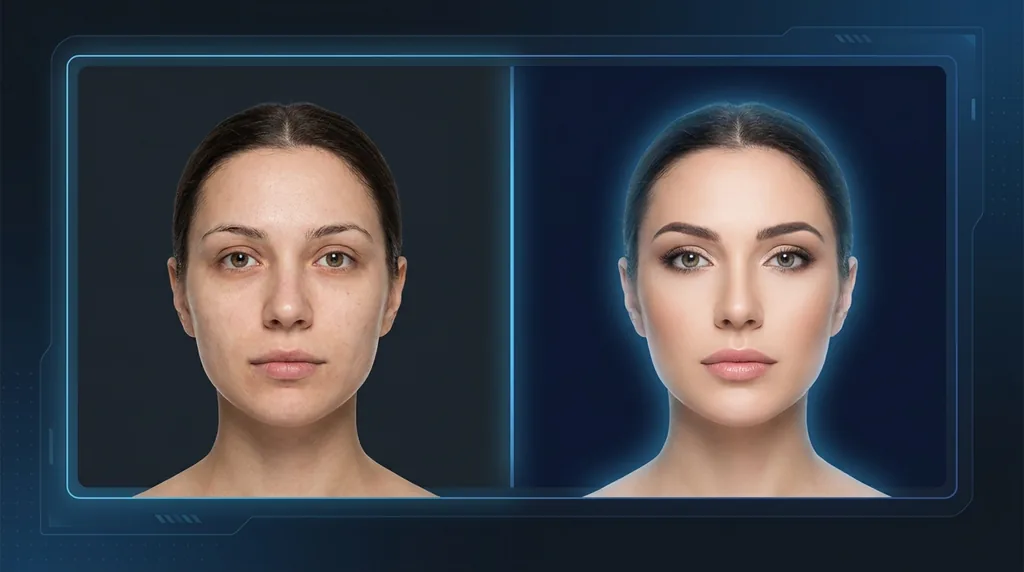
Get a polished, magazine-ready look without the makeup bag. AI Makeup & Retouch evens skin tone, softens blemishes, defines the eyes and brightens the smile - Choose a natural, glam or retouch-only finish. It keeps you looking like you, just at your best.
How it works
Upload a portrait
A clear, front-facing photo works best.
Choose a finish
Natural, glam, or retouch-only - Then generate.
Download
Save your polished portrait.
Popular ways to use AI Makeup & Retouch
Great for trying a glam look before an event, polishing a portrait for a profile, or giving product and lookbook shots a clean, retouched finish. The retouch-only mode suits professional headshots.
Pairs well with our Portrait Enhancer and Expression Editor.
New to this? Read our image enhancement guide.
See what others are creating →What input photo gives the best makeup result
Pairing makeup with other portrait tools
- Dating profile: retouch-only, then enhance
- Event glam: glam preset, then upscale for print
- Headshot: retouch-only for a natural, professional look
Best photos to use
- A bare or near-bare face for the Natural and Glam presets, since the AI lays product over what it already sees and existing lipstick, liner or filled brows get stacked into a heavier, muddier result
- The whole eye open and the iris visible, because the Glam preset anchors liner and shadow to the lash line and lid crease, and a half-closed or squinting eye gives it nothing to wing out from
- Lips relaxed and parted just enough to show the front teeth if you want the Retouch-only whitening to do anything, since it brightens the teeth it can see and skips a fully closed mouth
- Both cheeks and the jawline in frame, not cropped at the chin, so Glam contour and blush land on the actual face shape instead of being applied to a half-visible cheekbone
- Pores and fine skin texture still readable rather than a phone beauty-filter that has already smoothed them, because the retouch pass on pre-blurred skin tips straight into a waxy plastic finish
What to keep in mind
- The three presets are fixed prompts, so you cannot specify a lipstick shade, a brown vs black liner, a cut-crease or a particular contour intensity - Glam decides the palette for you and you re-run for a different read
- It only paints the face the lens caught, so a profile turn, sunglasses, a hand on the chin or a fringe over the brow leaves those areas untouched while the rest gets a full beat, which can look lopsided
- It applies one even look across the face and does not target a single feature, so you cannot ask it to whiten teeth but leave the eyes alone, or add only lipstick - the chosen preset runs the whole pass
What you get
You get the same portrait back at the same pose and framing, with makeup and retouching applied to the face only - skin tone evened, blemishes and shine reduced, eyes and lips defined, and teeth brightened - depending on whether you chose Natural, Glam or Retouch-only.
Real ways to use AI Makeup & Retouch
This adds makeup and retouches the skin - it does not swap or replace the face, so if you want to put your face onto someone else's styled photo use Group Face Swap instead; and to restyle the hair around your new beauty look rather than the face itself, run the Hairstyle Changer.