
Face Blur & Anonymizer
Protect privacy - Automatically blur every face in a photo before you share it.
Click or drag a photo here
JPG, PNG or WebP - up to 15 MB
Uses 10 credits - earn more free
Working on your image…
Why use Face Blur?
Privacy first
Anonymize bystanders before sharing - On-brand with our consent values.
Faces only
Blurs every face while keeping the rest of the photo sharp.
Automatic
Detects and blurs all faces in one tap - No manual selecting.
Sharing a photo with bystanders in it? Protect their privacy first. The Face Blur tool automatically detects and blurs every face in an image - Ideal for posting street scenes, classrooms, events or anything with people who haven't consented to appear. It's a practical reflection of our consent-first values.
How it works
Upload a photo
Add any image containing faces you want to hide.
Blur faces
Every detected face is blurred or pixelated automatically.
Download
Save the anonymized photo, ready to share safely.
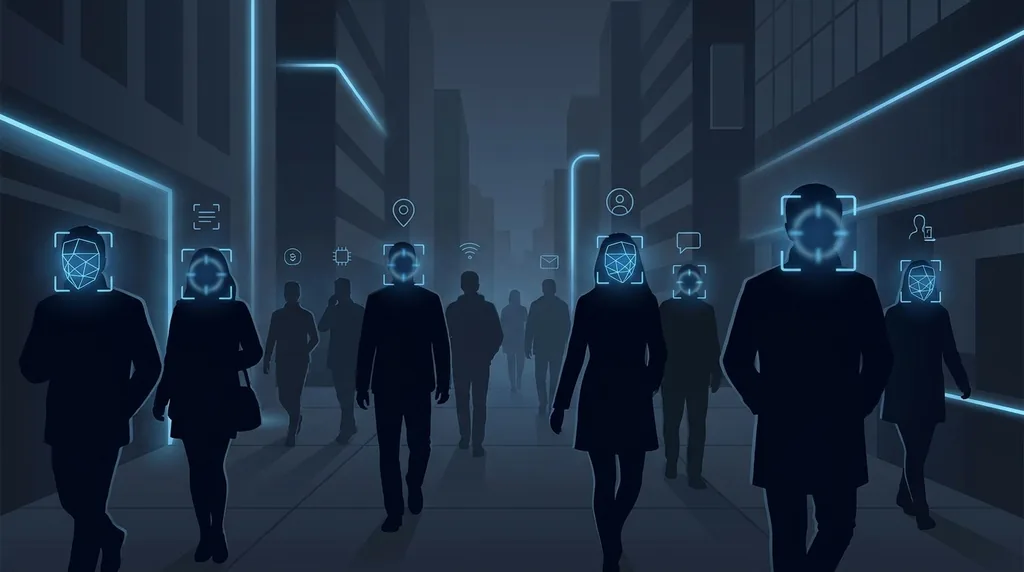
Popular ways to use Face Blur
Anonymise bystanders before posting street, classroom or event photos, protect children's faces on social media, and prepare images for privacy-conscious sharing - on-brand with our consent-first values.
Pairs well with our safety & consent and Background Remover.
New to this? Read our face swap privacy guide.
See what others are creating →When and why to blur faces before sharing
Getting clean, complete anonymization
Best photos to use
- Finished, ready-to-post photos rather than ones you still plan to crop or rotate - blur once at the end so you don't re-expose a face by re-editing afterwards
- Frames where you can count the faces yourself, so you have a target number to check the export against and can spot any face the tool skipped
- Shots where reflective surfaces are minimal - a face mirrored in a shop window, sunglasses lens, phone screen or polished table is a second copy of that person the tool may leave sharp
- Photos taken at a distance over close-up portraits, since blurring is meant to anonymize incidental bystanders, not the consenting subject you actually want recognizable
- Group or street scenes where blanket anonymization is the goal, because the tool hides everyone at once and is not the right choice when you need one specific person left visible
What to keep in mind
- It anonymizes the face only - a person can still be recognized by a tattoo, a name badge, a wheelchair, a distinctive jacket or the captioned location, so blurring is one layer of privacy, not a guarantee of anonymity
- Faces reflected in mirrors, glasses, screens or water, seen in strict profile, or reduced to a few pixels in the background may be missed, so the export always needs a face-by-face visual check before you share it
- Drawn, painted, sculpted, masked, posters-in-the-background and pet faces are not read as human faces and are generally left sharp
What you get
A copy of your photo with a soft blur or pixelation baked over every detected human face, while clothing, hands, scenery, text and the rest of the frame stay completely sharp and untouched.
Real ways to use Face Blur
Face Blur leaves a visible obscured patch where each person was; if a stray bystander would look better gone entirely, the Object Remover erases that person and fills the gap with background. When the photo is a crowd you actually want everyone recognizable in - for example dropping a missing friend into a team shot - the Group Face Swap handles every face instead of hiding them.