
AI Object & Person Remover
Clean up your photo - Remove photobombers, objects and distractions automatically.
Click or drag a photo here
JPG, PNG or WebP - up to 15 MB
Uses 10 credits - earn more free
Working on your image…
Why use Object Remover?
Erase distractions
Remove photobombers, objects and clutter from any photo.
Seamless fill
The background is reconstructed so the removal isn't obvious.
Automatic
No careful masking - The AI handles the cleanup.
A perfect photo with one distraction - A photobomber, a stray bin, a sign - Is frustrating. The AI Object Remover cleans it up automatically, erasing unwanted objects and people and intelligently filling the background so the edit is invisible.
How it works
Upload a photo
Add the image you want to clean up.
Remove
The AI erases distractions and fills the gaps.
Download
Save your clean, distraction-free photo.
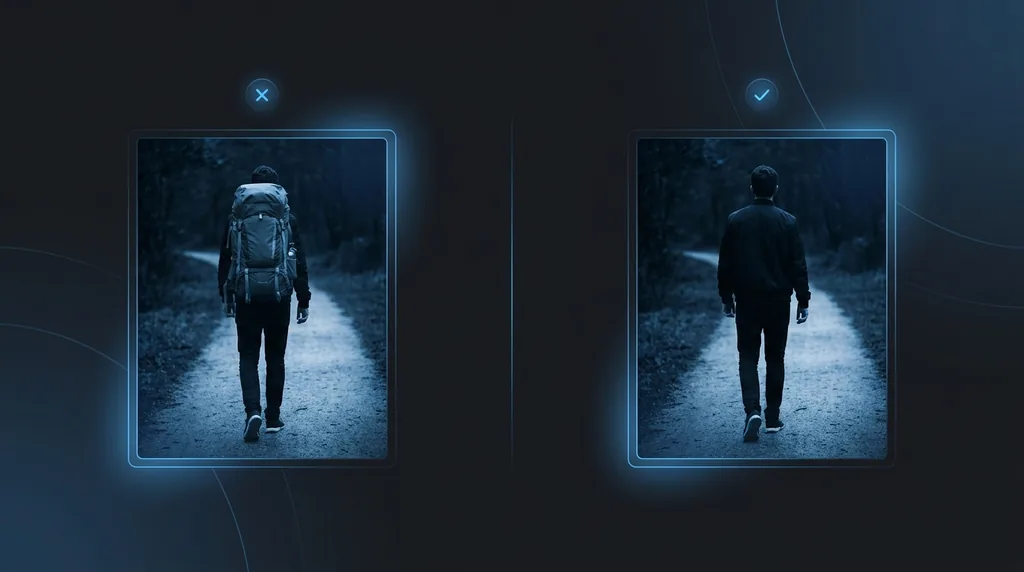
Popular ways to use Object Remover
Erase photobombers from holiday snaps, remove signs, wires and bins from real-estate and product shots, or clean up clutter before posting. A quick fix for an otherwise perfect photo.
Pairs well with our AI Photo Editor and Background Remover.
New to this? Read our background removal guide.
See what others are creating →What removes cleanly and what's harder
Everyday cleanup use cases
Best photos to use
- Frame the shot so there is a band of plain background (sky, water, grass, a painted wall) running behind the object on every side, because the AI copies texture inward from those edges to rebuild the gap
- Pick the angle where the unwanted item sits furthest from your subject's outline; the wider the strip of empty background between them, the less the fill can clip the subject's hair, fingers or product edge
- If the object casts a shadow or throws a reflection (a person on a sunlit pavement, a bottle on a glossy table), shoot or upload a version where that shadow also lands on plain ground so it can be erased in the same pass
- When the object straddles a seam in the background, like a fence meeting a hedge or a wall meeting the floor, line up your crop so as much of that seam as possible stays visible, giving the AI both surfaces to continue
- Avoid frames where the object is the only thing breaking up an otherwise busy pattern (a single car in a packed street, a sign on a mural); the reconstructed patch has to invent unique detail and tends to smear
What to keep in mind
- It works by inpainting plausible background, not by recovering what was truly behind the object, so anything genuinely hidden (a doorway, a signpost, part of a building) is invented and may not match what was really there
- Straight lines and regular geometry that pass behind the object, such as a horizon, a tiled floor, window frames or roof edges, often come back slightly bent or misaligned where the fill rejoins them
- The cast shadow or mirror reflection of a removed object is frequently left behind, so a person can vanish while their shadow on the ground or their reflection in a window stays put
- Two objects close together can confuse the boundary, so removing one may smudge or partly erase the neighbour you wanted to keep
What you get
You get back the same photo at the same dimensions with the chosen object, person or clutter erased and the empty space painted over with matching background, so the subject and overall scene are untouched. It is a spot fix, not a cutout or a transparent PNG.
Real ways to use Object Remover
Object Remover deletes a person or item and rebuilds the scene without them; if instead you want to keep a bystander in the shot but hide who they are, use Face Blur to anonymise their face rather than erase the whole person.