
AI Age Filter - Older & Younger
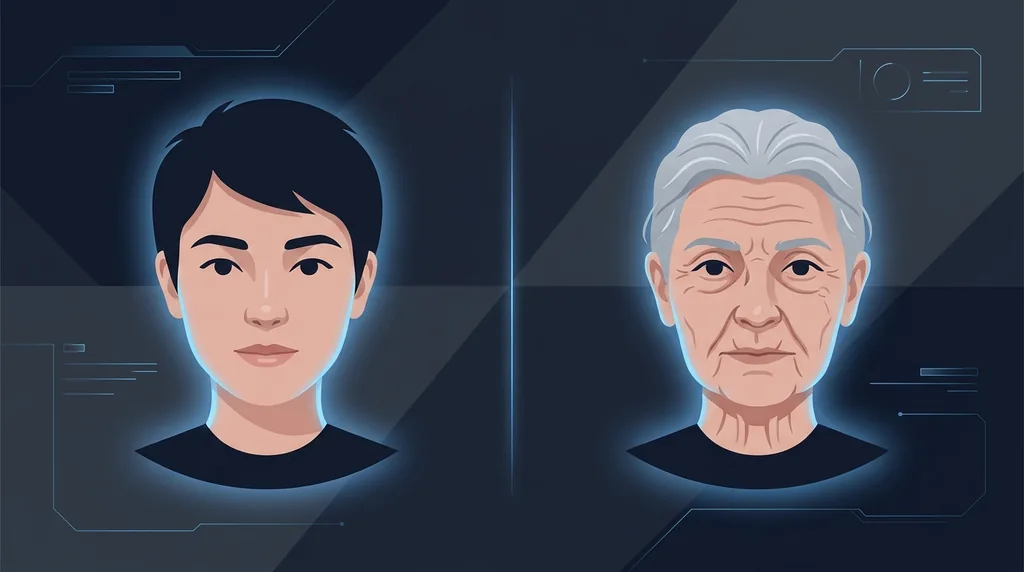
See yourself older or younger. Realistically age a face forward or back while keeping it recognisable.
Click or drag a photo here
JPG, PNG or WebP - up to 15 MB
Uses 10 credits - earn more free
Working on your image…
Why use Age Filter?
Forward or back
Age a face older, much older, or de-age it younger in one click.
Realistic detail
Natural wrinkles, hair changes and skin texture - Not a cheap overlay.
Made to share
A fun result that's perfect for socials and group laughs.
Curious how you'll look in 30 years - Or how you looked as a teenager? The AI Age Filter realistically ages a face forwards or backwards, adjusting skin, hair and features while keeping the person clearly recognisable. It's a fun, shareable way to time-travel a portrait.
How it works
Upload a face
A clear, front-facing portrait gives the most realistic aging.
Pick a direction
Older, much older, or younger - Then generate.
Download & share
Save the result and share the transformation.
Popular ways to use Age Filter
The Age Filter is a hit for 'how will I look in 30 years' challenges, reunion and birthday posts, de-aging throwbacks, and family what-if comparisons. It is one of the most shared face transformations on social media.
Pairs well with our Gender Swap and AI Face Swap.
New to this? Read our best photos to use.
See what others are creating →Build a full age timeline from one photo
What to expect from older vs younger edits
Best photos to use
- A photo taken at your current age, so the AI has a true baseline of decades to add or peel away rather than guessing your starting point
- Soft, even, frontal light with no harsh side shadows, because deep shadows under the eyes and nose get misread as existing wrinkles and exaggerate the 'older' result
- Hair worn naturally and fully in frame, since greying, thinning crowns and a receding hairline are the cues the AI leans on hardest when ageing forward
- Skin shown at its real texture, without a beauty-filter or heavy retouching already applied, or the de-age pass has nothing left to smooth and the younger result barely shifts
- A face roughly in the 20-55 range gives the widest believable swing in both directions; very young or very elderly starting faces leave less room to age the other way
What to keep in mind
- It estimates a plausible appearance, not your real future face, since genetics, weight change, sun exposure and lifestyle are not modelled
- Each direction is a one-shot estimate with no age slider, so to land a specific decade you re-run the 'Older', 'Much older' or 'Younger' preset rather than dialling in an exact target age
- It edits the face and hair but does not age clothing, accessories or the background, so an elderly face can still sit oddly against a youthful outfit or modern setting
- Ageing forward (wrinkles, greying, thinning hair) is far more reliable than de-ageing, which only has smoothing and fuller features to work with and so shifts the face less
What you get
A single still portrait of the same person rendered at the chosen age direction, with adjusted wrinkles, skin texture and hair colour but the same pose, framing and background as your upload.
Real ways to use Age Filter
The Age Filter changes age across the whole face and hair at once. If your photo is already old enough but only the hair colour reads wrong, the Hairstyle Changer lets you add grey or restore a youthful colour without touching skin or features; and if you want an older face to also look warmer rather than just weathered, run the result through the Expression Editor to add a natural smile that ageing alone won't produce.