
AI Image Upscaler
Make any photo larger without losing sharpness. Our AI image upscaler increases resolution and brings back detail in small or compressed photos.
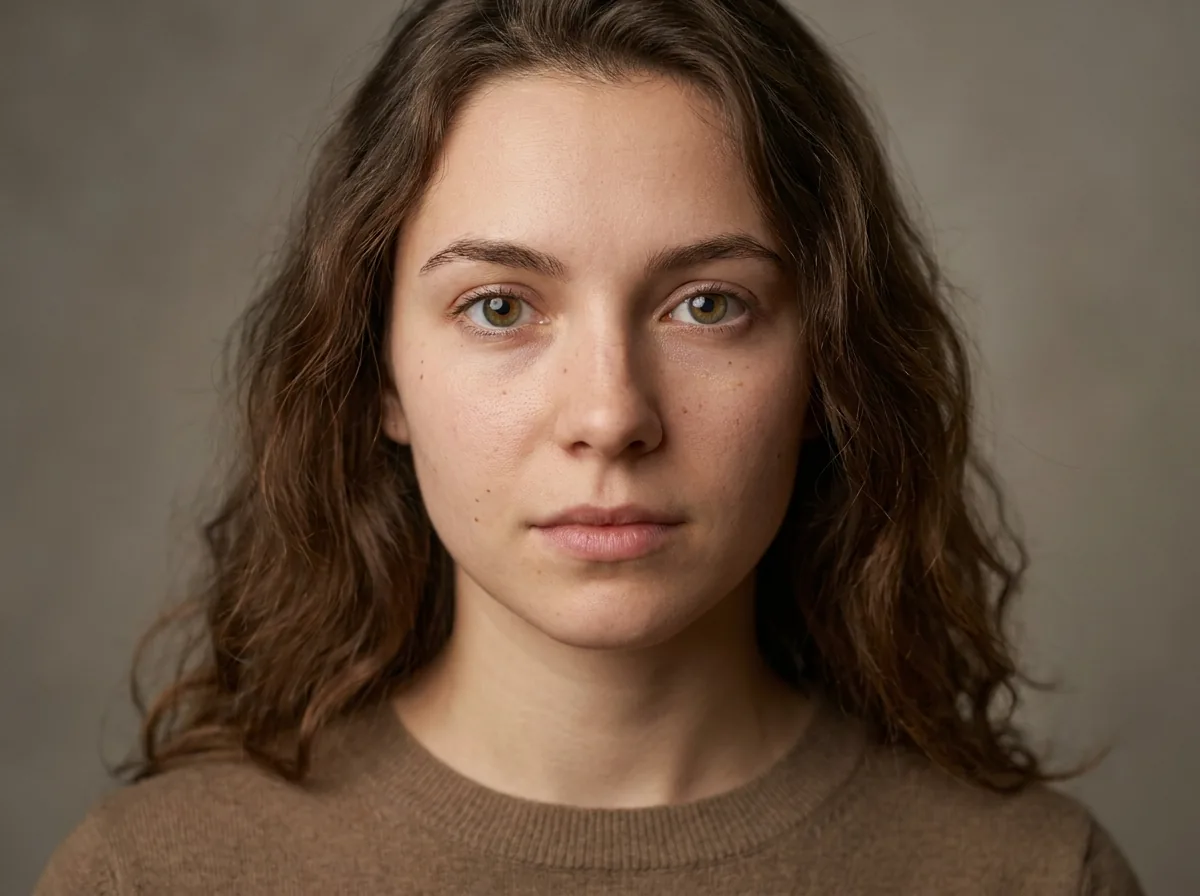
 Before
After
Before
After
Image Upscaler - Upload & Upscale Image
Click to upload or drag & drop
JPEG, PNG or WebP — max 10 MB
This tool is for creative and entertainment use only. Misuse to create deceptive or harmful content is strictly prohibited. Read our Content Policy.
How Image Upscaler Works
Upload a low-res image
Drop a small, blurry or compressed JPEG, PNG or WebP - Up to 10 MB.
AI upscales up to 4×
Our model rebuilds sharp edges and fine detail while enlarging the resolution.
Download the HD result
Compare the crisp result and save it in full quality - No signup.
Add Real Detail, Not Just Size
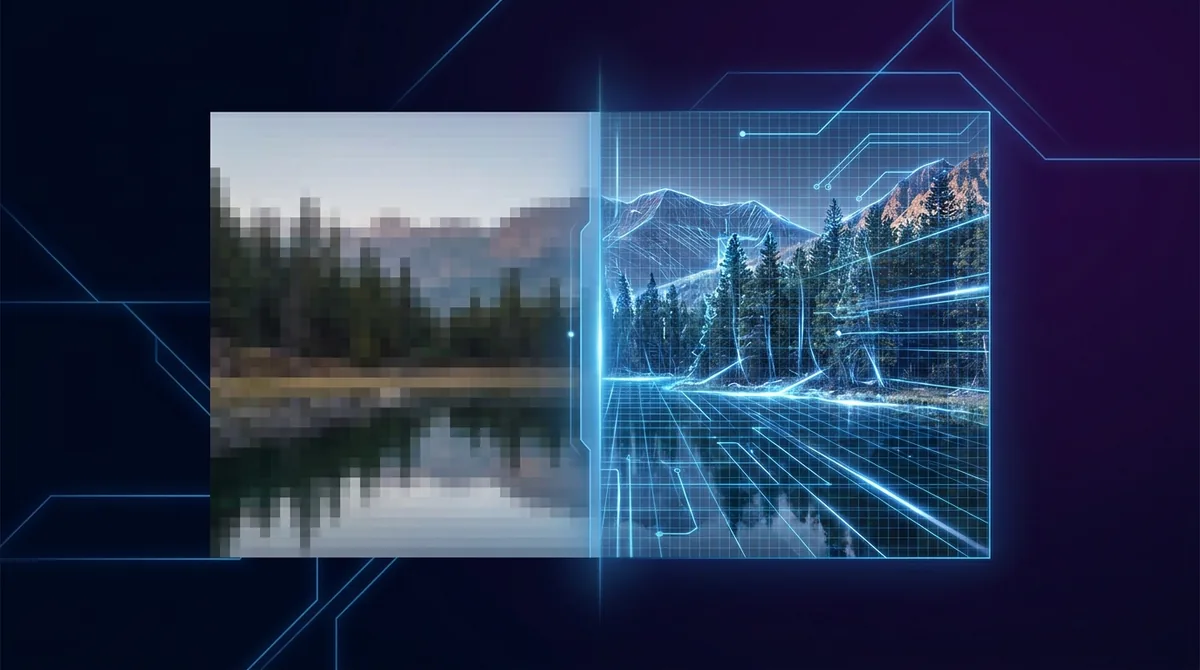
A simple resize just stretches the pixels you already have, leaving the result soft and blocky. Our AI image upscaler is different: it was trained on millions of photos, so it understands what skin, hair, text and textures should look like at higher resolution. Instead of guessing blindly, it reconstructs genuinely new detail - Sharpening edges, recovering texture and cleaning up compression artifacts - So an enlarged image still looks crisp and natural rather than blown up.
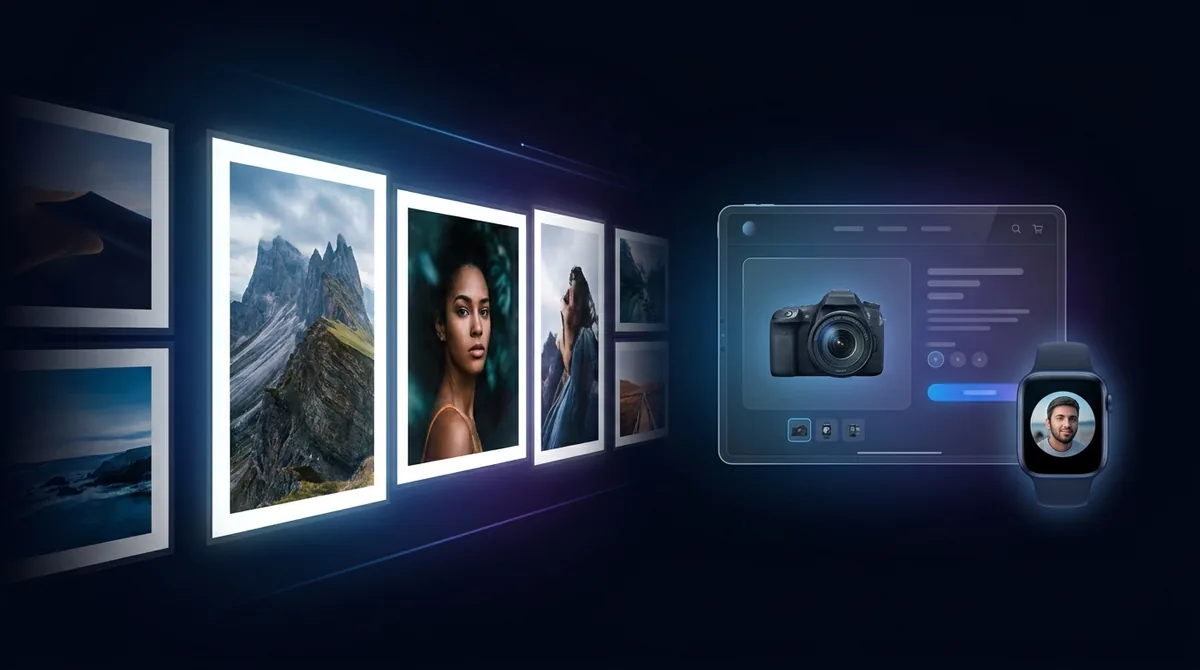
Perfect for Prints, Listings & Profiles
Upscaling is most useful when an image needs to work bigger than it was captured. Print a small phone photo as a poster without it turning fuzzy, sharpen product shots so an online listing looks professional, or rescue an old low-resolution profile picture. Designers use it to repurpose web graphics for high-DPI screens, and photographers use it to crop in tight and still keep a usable, sharp result. Pair it with the Image Enhancer for an extra polish.
Get the Sharpest Results
Start with the cleanest version of your image you can find - A screenshot of a screenshot will always limit quality. Avoid images that are already heavily compressed or full of noise, since upscaling can amplify existing flaws. For faces, a clear, well-lit source gives the AI more to work with. Choose a sensible scale (2× or 4×) for your goal, then download the full-resolution result and review it at 100% before printing or publishing.
Your images stay yours
Free to use with no signup. Uploads are processed securely and removed automatically. Only use photos you own or have permission to edit.
Learn about safety →Best photos to use
- Small-dimension originals only a few hundred pixels wide - web thumbnails, messaging-app downloads, or saved JPGs - that you now need at a usable size
- Tight crops where you zoomed into a corner of a larger frame and the cropped region came out too few pixels to print or post
- Photos from 1-3 megapixel cameras (early phones, old point-and-shoots) that look fine on a small screen but break up when enlarged
- Low-resolution raster art, exported game sprites, or flat logos you want resampled cleanly so edges stay crisp on high-DPI displays
- A sharp but small finished image - say 1000px - that simply has to be physically bigger for a poster, banner, or full-screen background
What to keep in mind
- It changes resolution, not exposure or color - a dim, washed-out, or wrongly white-balanced photo comes back the same way, just larger, so fix the look with the Image Enhancer (or the Portrait Enhancer for faces) first
- It cannot reveal detail that was never recorded: text too small to read, faces a dozen pixels across, or heavily JPEG-compressed sources stay vague and can show invented patterning when pushed to 4x
- Enlargement is a fixed 2x or 4x multiple of the original - there is no custom target size and the aspect ratio never changes - and uploads are limited to JPG, PNG or WebP up to 15 MB
What you get
A single enlarged copy of your image at 2x or 4x its original pixel dimensions (a 1000x1000 input becomes 2000x2000 or 4000x4000), with edges and texture reconstructed rather than just stretched. It downloads at full resolution as a finished image carrying a small Face-swapper.org mark; the original is left untouched.
Real ways to use Image Upscaler
Reach for upscaling only when the problem is size. If the image is already big enough but looks flat, dim, or off-color, run the Image Enhancer instead - or the Portrait Enhancer when a single face is the subject - since those fix lighting, color and sharpness, not pixel count. For scratched, torn, or faded vintage scans, repair them with Photo Restoration first, then upscale the cleaned-up result if you still need it larger.