
AI Expression Editor - Add a Smile
Fix the photo where someone wasn't smiling - Add a natural smile or open closed eyes.
Click or drag a photo here
JPG, PNG or WebP - up to 15 MB
Uses 10 credits - earn more free
Working on your image…
Why use Expression Editor?
Save the shot
Rescue a great photo spoiled by a blink or a flat expression.
Natural smiles
Adds genuine-looking smiles, not a pasted-on grin.
One tap
Pick an expression and generate - No editing skills needed.
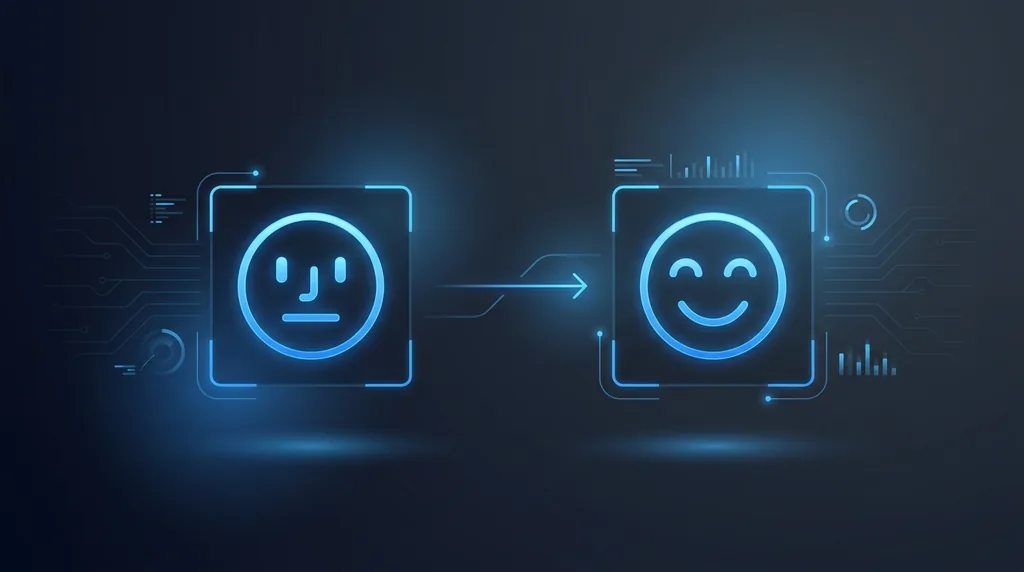
Almost-perfect group photo ruined by one blink or a missing smile? The Expression Editor fixes it - Add a natural smile, turn a closed-lip into a grin, or open closed eyes - While keeping the person's identity and the photo's lighting consistent.
How it works
Upload the photo
Add the portrait you want to fix.
Choose an expression
Add a smile, a big smile, or open the eyes.
Download
Save the corrected photo.
Popular ways to use Expression Editor
Rescue group photos where someone blinked or did not smile, soften a stiff passport-style shot, or add a warm smile to a portrait for a friendlier profile picture.
Pairs well with our AI Makeup and Portrait Enhancer.
New to this? Read our improving face photo quality.
See what others are creating →Best photos for natural expression edits
Creative and practical ways to use it
Best photos to use
- A neutral or closed-mouth starting expression, since reshaping a slight frown into a smile reads more naturally than forcing a smile onto someone already mid-laugh
- The lip line and front teeth unobstructed (no chewing gum, cigarette, straw, finger or pacifier across the mouth) so the tool has clean edges to reshape into a grin
- Eyes that are at least partly open in the original, because a fully shut, deeply shadowed socket gives the 'open eyes' option almost no iris detail to reconstruct
- A face wide enough to span a few hundred pixels, not a pinhead in a wide banquet shot, so the cheek-crease and mouth geometry is actually resolvable
- Even, flat lighting across the face with no harsh side-shadow or hotspot, since the reshaped smile inherits the existing light and any shadow line gets baked into the new mouth
What to keep in mind
- It only reshapes a mouth, cheeks and eyes; it will not change head tilt, redirect a face turned away from the camera, or fix a gaze pointed off-frame, so a person looking down still looks down after the smile is added
- The opened or smiling eyes are an AI reconstruction of a gaze that was never captured, so the iris direction and catchlights may not match what the person's eyes actually looked like that day
- A forced big toothy grin on a face whose jaw and cheeks stayed completely slack can land in the uncanny zone; the subtler closed-lip option is the safer, more believable edit
- It adds an expression but cannot invent a full set of even, white teeth from nothing, so a 'big smile' on someone with no visible teeth in the source is more of a guess than a faithful likeness
What you get
You get back the same portrait with only the mouth, cheeks and eye area re-rendered to the expression you picked (added smile, teeth-showing grin or opened eyes), while the person's identity, skin tone, hairstyle and original lighting stay untouched.
Real ways to use Expression Editor
This tool only changes what the face is doing; if the expression is already fine but the skin, eyes and overall sharpness need work, send the photo through the Portrait Enhancer instead. To restyle the whole picture rather than the mouth, the Cartoonizer turns the same portrait into a cartoon, anime or 3D-animation look.